Had to reinstall my development environment. These are the applications I initially installed..
* means that I got a personal license or subscription for the application
GENERAL
- Chrome
- 1Password *
- Process Explorer
- WinRAR *
UltraEdit*UltraCompare*- Greenshot
- Stardock: Fences *
- Google Drive
- Speccy
- Recuva
- Folder Size Professional *
- Everything
- VLC
- Spotify *
- Adobe Acrobat
- ClipClip
- f.lux
WINRAR
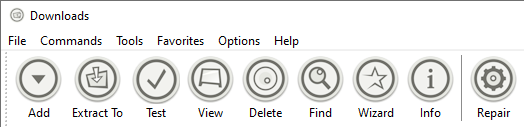
This is my favourite compression tool. I like the Orbital 48×48 theme since I think it gives a more subdued impression. For this application, I have a personal license.
ULTRAEDIT / ULTRACOMPARE
These were my go to tools for advanced text edits and comparisons, when more specialized tools fail to accomplish what I was looking for. They were with me for a very long time and I got lifetime personal licenses for them.
Nowadays however, I rarely use them anymore, but rather resort to VS Code for anything text related.
GOOGLE DRIVE
I want to keep Google Drive accessible as a drive, so I configure it to use the streaming option.
FOLDER SIZE
Folder Size is a great tool that I use to find out what is using all disk space. I have bought a personal license for the professional version.
DEVELOPMENT
- Visual Studio Code (system installer)
- Visual Studio
BuildVision extension
- JetBrains dotUltimate
- ReSharper
- dotPeek
- dotTrace
- dotMemory
- Git
- Windows Terminal & Powershell
- Fork *
- LogViewPlus *
DBeaver- DbVisualizer *
- Git Branch View
- Remote Desktop Manager
- Paint.NET
- Balsamiq Wireframes
- Screen-O-Matic
- Postman
- GitHub CLI
- Claude Code CLI
- MSBuild Structured Log Viewer
- WMI Explorer
- Process Monitor
- Node.js
- Python
- PostgreSQL
- Firebird
IcoFX
VISUAL STUDIO CODE
I choose to Add context menus for files and folders when installing.
GIT
I have my default Git config file on GitHub.
GITHUB CLI
I install GitHub CLI from precompiled binaries.
CLAUDE CODE CLI
The advanced setup guide is a good place to start.
GIT BRANCH VIEW
Since I use Git Branch View to open Git terminal windows, I have in some environments where I need to run Git Branch View with administrator privileges encountered issues accessing mapped network drives. The reason is that mapped network drives are not shared between elevated and non-elevated modes. It can however be configured to be shared by setting the DWORD value EnableLinkedConnections to 1 under HKEY_LOCAL_MACHINE\SOFTWARE\Microsoft\Windows\CurrentVersion\Policies\System in the registry.
ENVIRONMENT VARIABLES
On some systems, I have moved the NuGet package cache to a different drive save space on the system drive. Additionally, I have my default Git config file in a different location.
From a PowerShell profile in Windows Terminal, run the following statements to apply environment variables that control these locations. Adjust paths as needed.
# User-level — GIT_CONFIG_GLOBAL
[System.Environment]::SetEnvironmentVariable('GIT_CONFIG_GLOBAL', 'R:\.gitconfig', 'User')

# Machine-level — NuGet paths (run as Administrator)
[System.Environment]::SetEnvironmentVariable('NUGET_PACKAGES', 'F:\nuget\.nuget\packages\', 'Machine')
[System.Environment]::SetEnvironmentVariable('NUGET_HTTP_CACHE_PATH', 'F:\nuget\v3-cache', 'Machine')
[System.Environment]::SetEnvironmentVariable('NUGET_PLUGINS_CACHE_PATH', 'F:\nuget\plugins-cache', 'Machine')